> ## Documentation Index
> Fetch the complete documentation index at: https://documentation.deluxhost.net/llms.txt
> Use this file to discover all available pages before exploring further.
# Connect to your VPS
[Click here](https://documentation.deluxhost.net/vps/details) to learn how to find login credentials
### **What is an SSH connection?**
An SSH connection is a secure protocol that allows remote access to a server via an encrypted connection, typically used to manage and configure servers.
### **How to connect to a Windows Server (RDP)?**
**On Windows:**
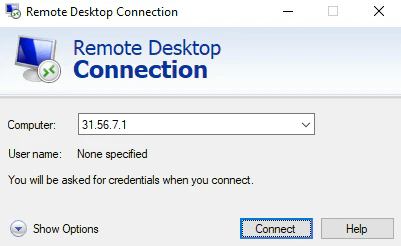
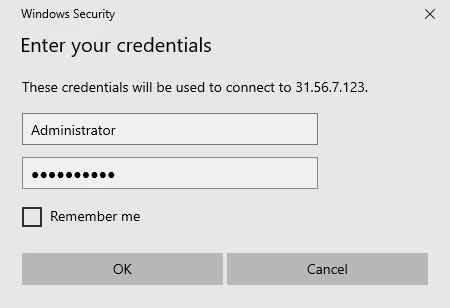
* Open the **`Remote Dekstop Connection`** application, enter the **IP address** of the target server, then put “**Administrator**” as username, and the password.
 **On Linux:**
* Download a third-party software to open RDP, such as **`Remmina`** or **`Thincast Remote Desktop Connection`**, and connect by entering username, ip, and password.
**On MacOS:**
* Download and install **`Microsoft Remote Desktop`** from the Mac App Store. Open the app, click **Add PC**, enter the server's IP address, and provide the login credentials. Click **Start** to connect.
### **How to connect to an SSH on Windows?**
**1.** Download and install [**PuTTY**](https://www.puttygen.com/download-putty) (for Windows), [**Termius**](https://termius.com/) (easiest to use), or any other ssh-opener.
**2.** Once open, enter your login credentials, so you will have logged in to your server.
**Warning**: If you will have downloaded Windows on the server, remember that the user name
is **Administrator**. Otherwise, with linux, it will be **root**.
### **How to connect to an SSH on Linux / MacOS?**
Open the terminal and type `ssh username@server_ip` replacing `username` with your username and `server_ip` with the server's IP address. Then, enter your password when prompted to access the server.
```
ssh -p 22 username@server_ip
```
**Warning**: When logging in via **terminal** or software such as **PuTTY**, at the time
you enter the password, it will not be displayed but still entered.
**On Linux:**
* Download a third-party software to open RDP, such as **`Remmina`** or **`Thincast Remote Desktop Connection`**, and connect by entering username, ip, and password.
**On MacOS:**
* Download and install **`Microsoft Remote Desktop`** from the Mac App Store. Open the app, click **Add PC**, enter the server's IP address, and provide the login credentials. Click **Start** to connect.
### **How to connect to an SSH on Windows?**
**1.** Download and install [**PuTTY**](https://www.puttygen.com/download-putty) (for Windows), [**Termius**](https://termius.com/) (easiest to use), or any other ssh-opener.
**2.** Once open, enter your login credentials, so you will have logged in to your server.
**Warning**: If you will have downloaded Windows on the server, remember that the user name
is **Administrator**. Otherwise, with linux, it will be **root**.
### **How to connect to an SSH on Linux / MacOS?**
Open the terminal and type `ssh username@server_ip` replacing `username` with your username and `server_ip` with the server's IP address. Then, enter your password when prompted to access the server.
```
ssh -p 22 username@server_ip
```
**Warning**: When logging in via **terminal** or software such as **PuTTY**, at the time
you enter the password, it will not be displayed but still entered.